user manual
what’s in the box
- Ohm keyboard
- USB-C cable
- Switch removal tool
getting started
To enable Bluetooth pairing, turn on your keyboard by flipping the power switch located on the back of the keyboard. Wired operation is supported at any time.
The Ohm keyboard uses firmware called ZMK. To view and edit your keymap, plug your keyboard into a computer, navigate to zmk.studio in a chrome-based browser (edge, chrome, brave) or download the desktop app. Select your keyboard in the software, and press the studio unlock keybind to allow edits to your keymap.
Understanding Layers
Your keyboard has multiple layers that let you access functions beyond the amount of physical keys. Layers work like the Shift of Function key on a regular keyboard. When you hold Shift, the keys do something different (like ‘a’ becoming ‘A’).
While you hold down a layer key, keys temporarily change to that layer’s functions. Let go of the layer key, and you’re back to normal typing. For example, holding “Right” and pressing ‘J’ would send the left arrow key instead of the letter.
This is how such a small keyboard can do everything a regular keyboard does without making you reach across the desk.
By default, you have two buttons you can use to change layers (highlighted in red). The left one switches to the left layer, and the right one to the right layer. pressing both allows you to access the both layer.
Keymap
Your keyboard has a default keymap configured from factory. Here is a graphic:
Legend: Red keys are keys that are pressed down. The ▽ symbol means that the key is transparent, and mappings from the previous layer are active.
Swapping keyswitches
The Ohm keyboard is hotswappable, no soldering required.
It is possible to remove the switch from the front of the keyboard without dissassembly, but it is recommended to use the following method:
- Unscrew the 13 screws on the back of the keyboard
- Use a credit card or other pry tool to lift the base plate away from the plastic shell
- Press on the round nub of the switch using the included switch removal tool
- Pull the switch away from the front side of the device
firmware update / change
The official firmware for the Ohm keyboard is hosted on GitHub here.
To upload/update firmware to your keyboard, use the end of the included keycap removal tool to double-click the reset button located on the top left of the bottom of your keyboard (pictured below). The keyboard should now show up as a USB drive on your computer named ‘NICENANO’. Drag and drop the ohm-nice_nano_v2-zmk.uf2 (or your very own) firmware file from our GitHub releases page, and your keyboard will automatically restart and run the new firmware!
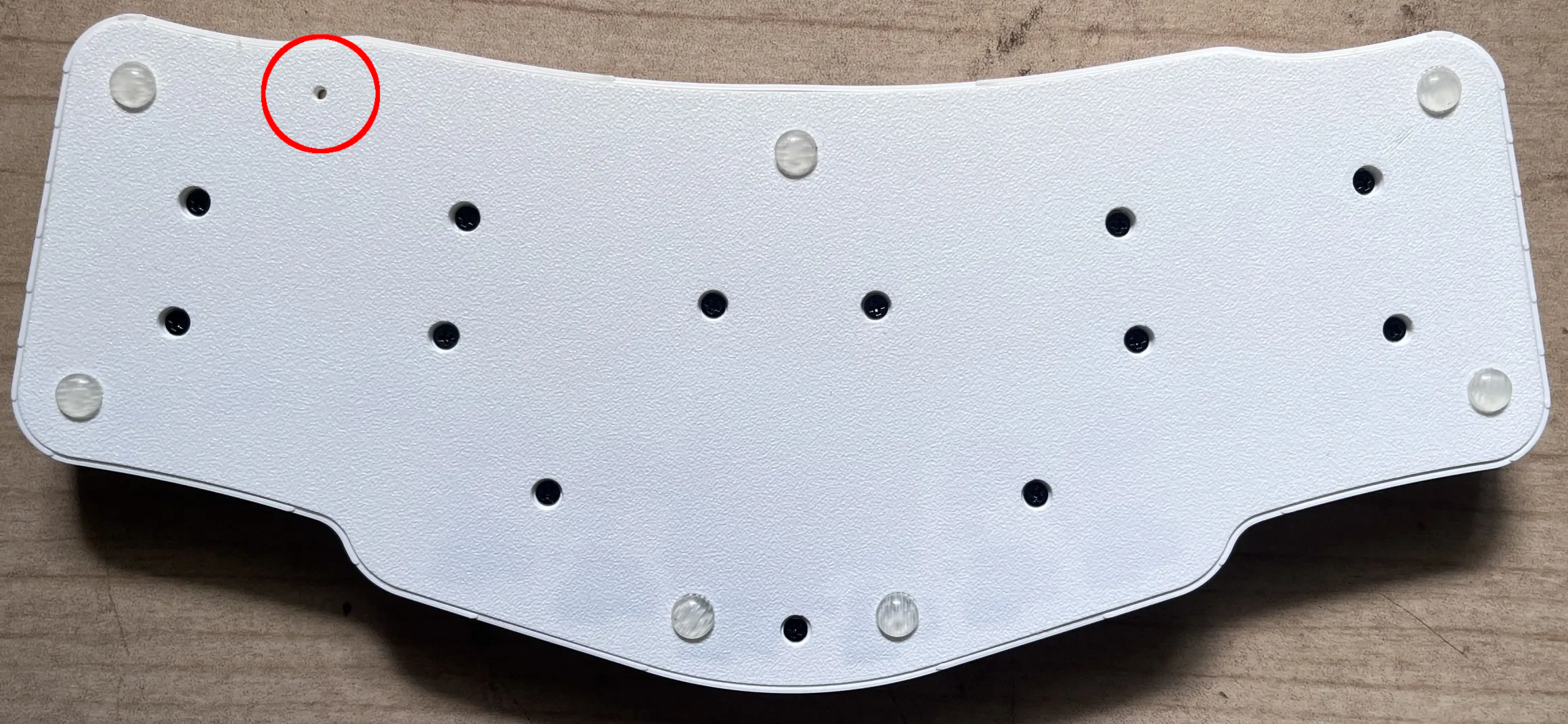
Your ZMK Studio edits should persist, so should your bluetooth profiles. To do a full reset, download the settings reset firmware from the releases page on our GitHub and flash it in the same manner as above.
faq
what switches does the ohm keyboard use?
The Ohm keyboard is compatible with Kailh Choc V1 and V2 switches. It is not compatible with MX switches.
is the ohm keyboard wireless?
Yes. The ohm supports both Bluetooth (up to 5 devices) and wired (USB) operation.
how long does the battery last?
3 months — we will update this once we have real-world data.
where is the ohm keyboard manufactured?
The ohm keyboard is designed and manufactured in-house in Canada by Limits Technology Inc.
what is the return / warranty policy?
TBD